How to integrate Google Drive into the CrocoClick Media Library
Integrate Google Drive with the CrocoClick media library and centralize your files for greater productivity.
Written By CrocoTeam
Last updated 2 months ago
What is Google Drive integration?
Google Drive integration allows you to connect your Google Drive account directly to the CrocoClick Media Library.
This allows you to:
Synchronize your files automatically.
Access your documents, images, and videos without having to manually upload them.
Organize your folders and preview your media all in one place.
In short: no more juggling between tools or reimporting everything
The benefits of Google Drive integration
Centralized management: bring your Google Drive files, CRM documents, and funnel assets together in CrocoClick.
Save time: changes made in Google Drive are synced in real time—no need to re-upload.
Unified storage: organize, preview, and manage your files in a single interface.
Total flexibility: access your media from both CrocoClick and Google Drive.
How to Integrate Google Drive with the Media Library
Step 1: Connect your Google Drive account
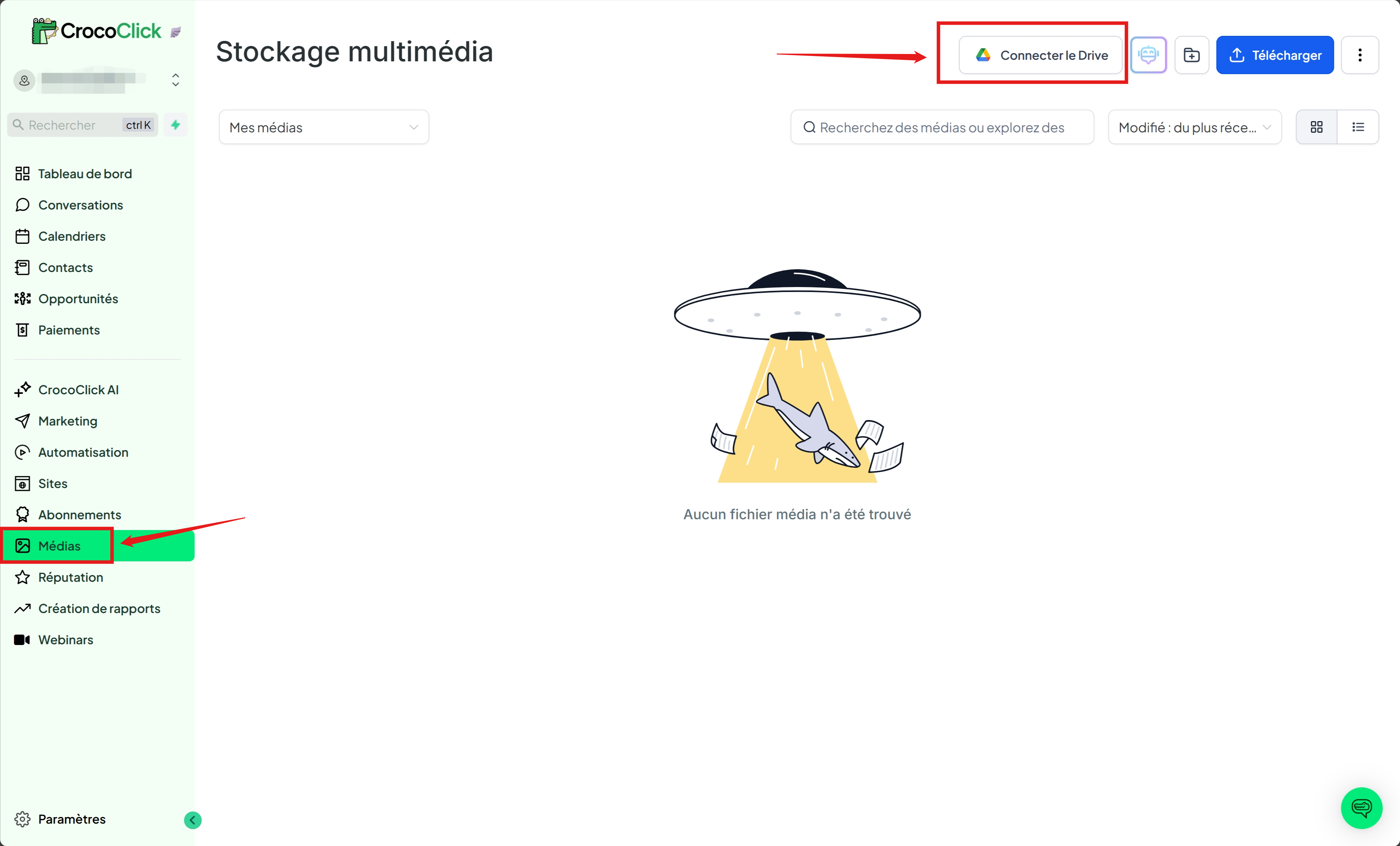
Go to the CrocoClick Media Library.
Click Connect Google Drive (top right).
Sign in to your Google Drive account via the sign-in screen.
Authorize CrocoClick to access your files.
👉 Once connected, an indicator will show the amount of space currently used on your Drive.
Step 2: Access your Google Drive files
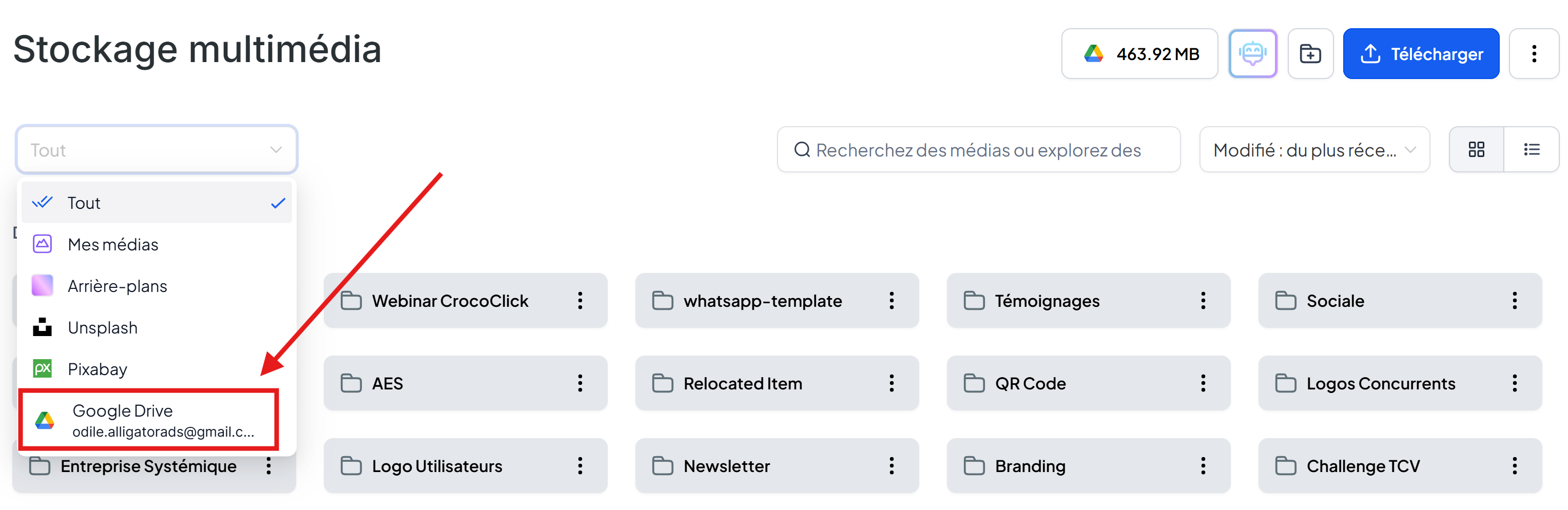
Click the dropdown menu, then select "Google Drive" in the Library.
Your Google Drive folders and files will appear right next to your CrocoClick media.
⚠️ Notes and limitations
Two-way synchronization: Any changes (additions or deletions) in Google Drive are immediately reflected in CrocoClick.
Deletion/renaming restrictions: To protect your data, you cannot rename or delete your Drive files from CrocoClick.
Folder creation: 100% possible both at the root level and within subfolders.
❓ Frequently Asked Questions
Q: Can I rename or delete a Google Drive file from CrocoClick?
No. These actions must be performed directly from Google Drive.
Q: Is synchronization instantaneous?
Yes, it’s in real time. Any changes made in Google Drive appear immediately in CrocoClick.
Q: Can I organize my Google Drive files in CrocoClick?
Yes. You can create folders, drag and drop, and organize your media just like in Google Drive.
Q: Where are my files stored?
Your files remain on Google Drive. CrocoClick simply provides an interface to easily access and manage them.
✨ With Google Drive integration, you can centralize your files, save time, and streamline your workflows.